
Stardew Valley on Mac: Restore the Previous Day’s Save
Undo the last saved day on Mac with a six-step Finder walkthrough, five original screenshots, and the exact names of both backup files to restore.
On this page
Slept before you meant to, or saved a day you want to replay? Stardew Valley normally keeps a pair of files from the previous save alongside the current pair. If both backups are present, you can make that earlier day the one the game loads.
This walkthrough follows Holly’s Mac screenshots. Finder is in Chinese in the pictures, but the folder and file names match the English instructions below.
Before starting, quit Stardew Valley completely. This restores the available previous save; it cannot select any date from your farm’s history. Keep the game closed while changing files.
1. Open the .config folder in Finder
Open Finder, choose Go → Go to Folder… from the menu bar, and enter:
~/.configPress Return to open that folder. You can also open the dialog with Command–Shift–G. The ~ means your Mac user’s home folder.
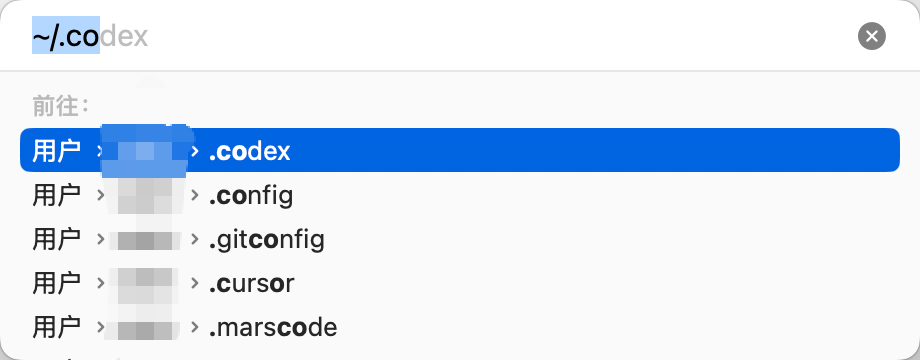
.config, the second suggestion in this screenshot. Enter the complete path above to avoid accepting the highlighted .codex suggestion.2. Open StardewValley
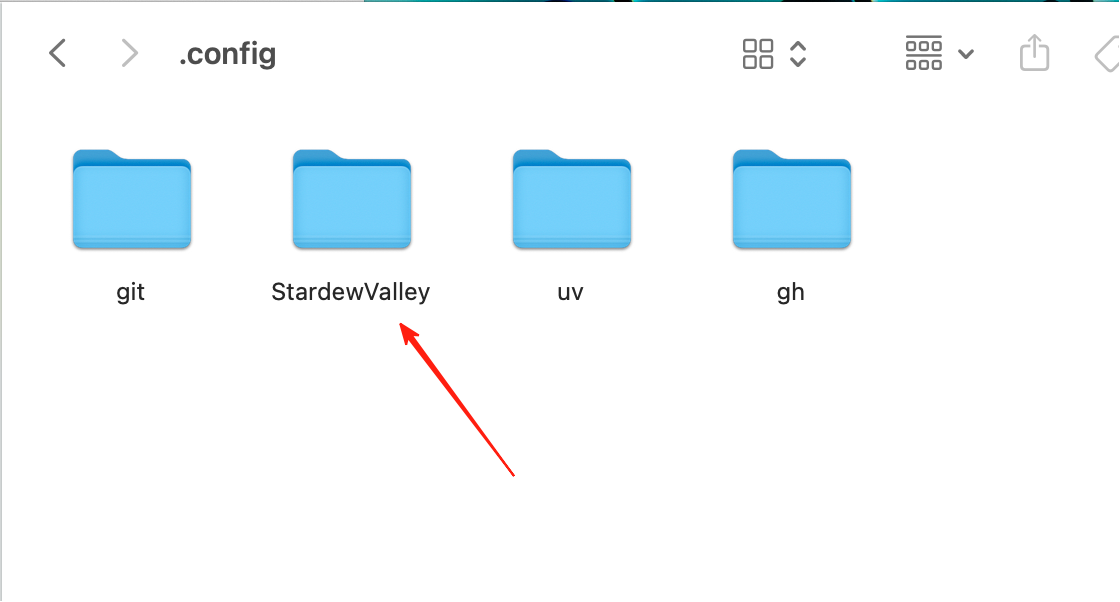
Inside .config, double-click StardewValley, as indicated by the red arrow.
3. Open Saves
Double-click Saves. Leave the other files in the StardewValley folder alone.
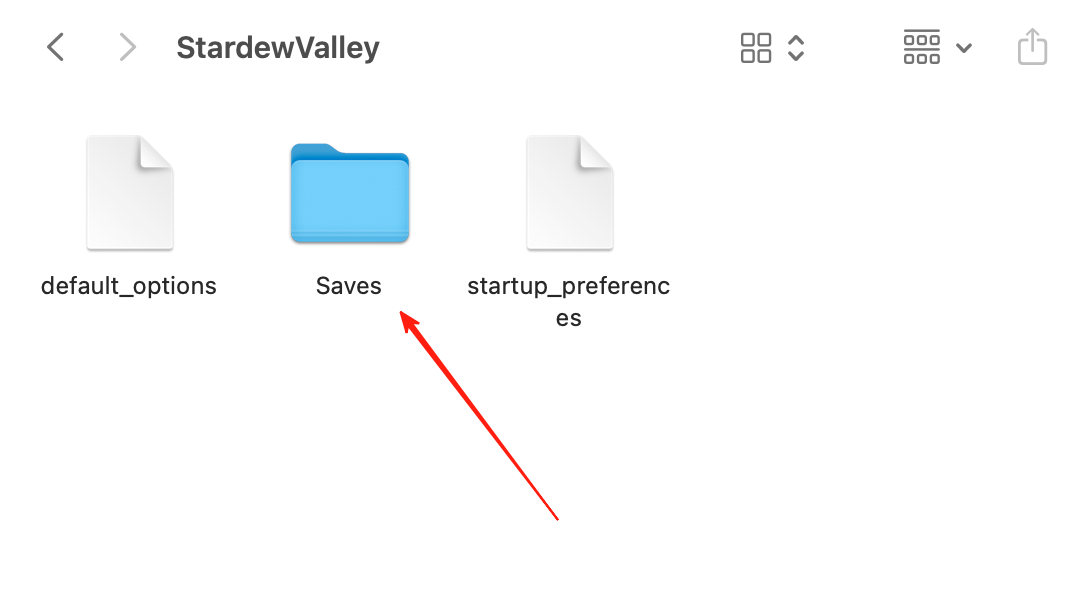
The full Mac path is ~/.config/StardewValley/Saves. Pasting that into Go to Folder… takes you directly here if you repeat the process later.
4. Find the save and copy the whole folder
Each saved game has its own folder, usually beginning with your farmer’s name, followed by an underscore and a numeric ID. Use that name and ID to identify the right character; the farm’s display name may differ.
The example below is lucky_451140984. Your folder will have its own name and number.
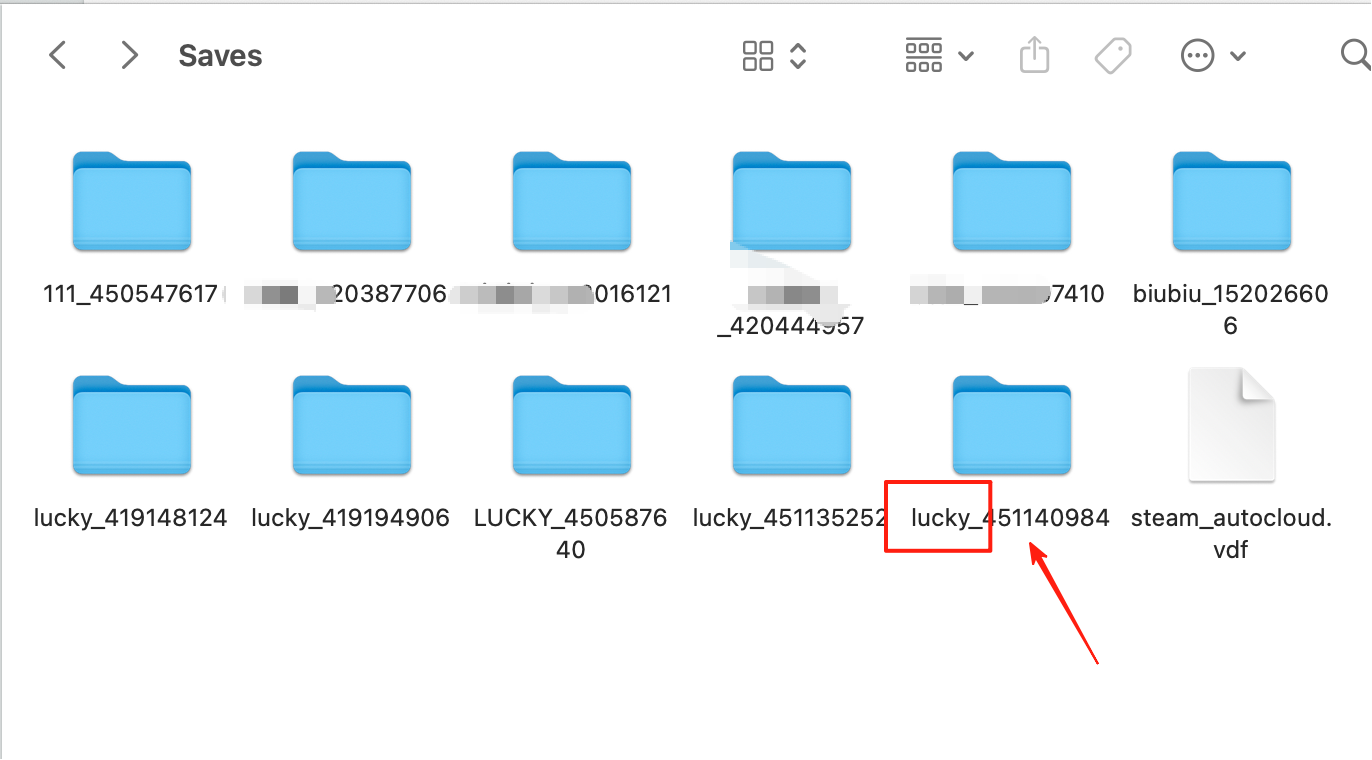
Copy this entire folder to your Desktop before continuing. Keep that copy untouched and work in the original folder under Saves. It gives you a way to return to the current save if you choose the wrong files or decide against the rollback.
5. Replace the current pair with the _old pair
Open the original save folder. A save with the previous-day backups available normally contains these four files:
| File in this example | Role |
|---|---|
lucky_451140984 |
Current game data |
SaveGameInfo |
Current load-menu information |
lucky_451140984_old |
Previous game data |
SaveGameInfo_old |
Previous load-menu information |
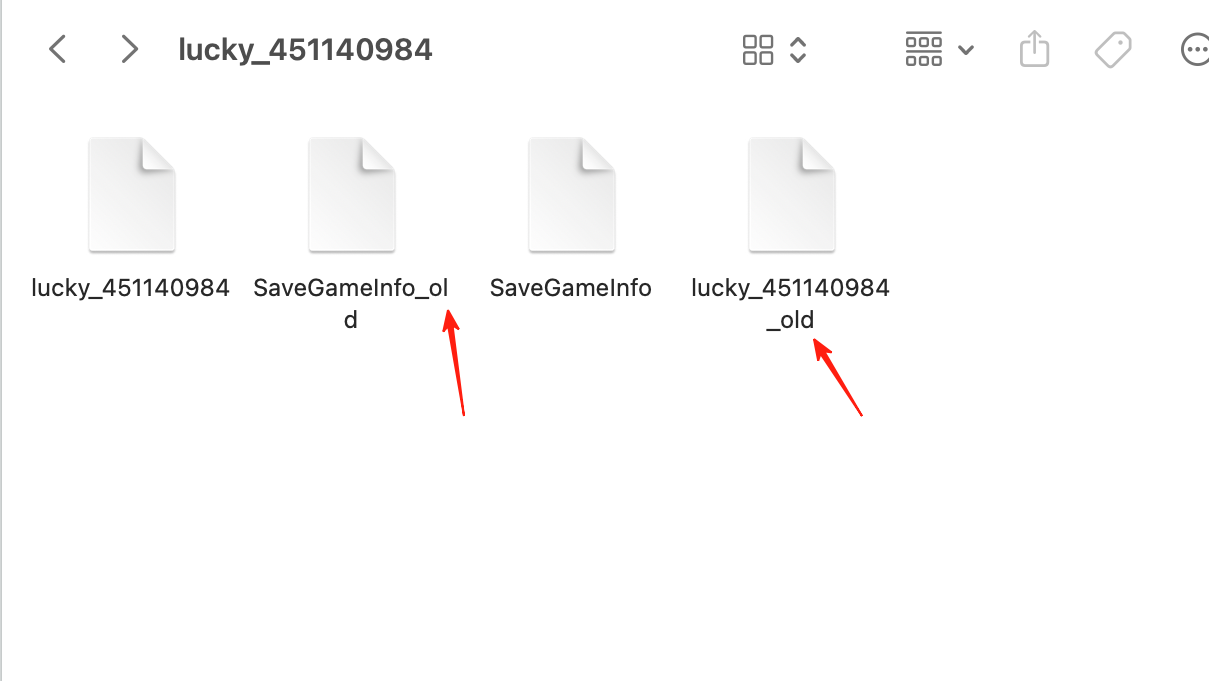
_old.First, move the two files without _old into a separate holding folder outside Saves. Keep the untouched whole-folder copy from Step 4 as well.
Then rename the two remaining files, removing only the final _old:
lucky_451140984_old  →  lucky_451140984
SaveGameInfo_old     →  SaveGameInfo
In Finder, select one file and press Return to rename it. Repeat for the other. Preserve your own name and numbers exactly, and leave the enclosing folder’s name unchanged. The main save file and its folder must have matching names.
6. Launch the game and check the day
Start Stardew Valley, choose Load, and open that character. With a valid matching backup pair, the game should load the previous saved day. Check the in-game date before continuing to play.
Keep your Desktop backup until you are satisfied with the result. If you want to undo the change, quit the game and restore the untouched folder copy to its original location.
If the expected files or day are missing
- No complete
_oldpair: stop before moving the current files. This method needs both available backups; it does not create missing ones. - The farm disappears from Load: close the game and check both filenames. Restore both members of the same pair and keep the main filename identical to the enclosing folder.
- You need an older date: the
_oldpair is a single previous-save backup, not a calendar of older days. You would need a separate older backup for another date.
Screenshots: original Mac captures supplied by Holly, used in their original order. References checked 26 October 2026: the official save-file troubleshooting guide for the paired backups and naming rules, the Wiki’s Mac save location, and Apple’s Go to Folder instructions.
Include the passage, game version, and platform so we can check it.